
EasyShare, Vivo’s native file transfer and data migration utility, uses ad-hoc Wi-Fi Direct and local hotspot protocols to move files between Android, iOS, Windows, and macOS devices without using cellular data.
The app is designed to make local file transfers simple. However, hardware security protocols, operating system permissions, and network band mismatches can cause pairing failures, interrupted transfers, or app crashes.
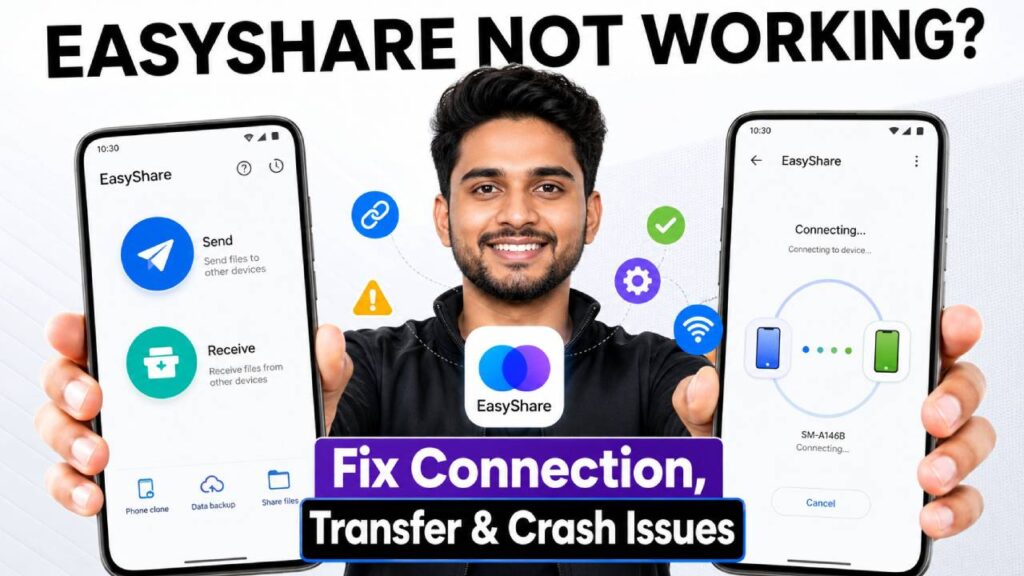
If EasyShare is stuck on “Searching for Devices,” cannot scan QR codes, or times out during a transfer, this EasyShare Troubleshooting Guide will give technical solutions for fixing these problems across all supported platforms.
Quick Diagnostic Checklist
Before changing operating system settings, check these common problems first:
| Potential Failure Point | Root Cause | Immediate Action |
|---|---|---|
| QR Code Scan Fails | Camera permission disabled or screen brightness too low | Grant camera access and set the receiver screen brightness to maximum |
| Device Not Found | Location services disabled due to Android restrictions | Turn on System GPS/Location on both devices |
| Transfer Drops at 99% | Battery Saver stops the background process | Exclude EasyShare from OS Battery Optimization |
| PC Connection Timeout | Active VPN or third-party firewall blocking the port | Temporarily disable VPNs and firewall real-time protection |
1. Fix EasyShare Connection and Pairing Failures
Pairing problems usually happen because local network discovery protocols are blocked, not because the app is damaged.
Enable System Location Services (GPS)
Android security frameworks require precise location permissions for apps that use Wi-Fi Direct or local hotspot scanning to find nearby devices.
If Location is turned off, EasyShare cannot start the network handshake.
- Swipe down to open the Quick Settings panel.
- Tap Location to turn it ON.
- Go to Settings > Apps > EasyShare > Permissions.
- Select Location and choose “Allow only while using the app” or “Allow all the time” for background migrations.
- Make sure Use Precise Location is enabled.
Disable Active VPNs and Private DNS
Virtual Private Networks (VPNs) and custom Private DNS settings send local device traffic through encrypted tunnels. This can break the local subnet communication that EasyShare needs.
VPN: Open your VPN app and tap Disconnect, or go to Settings > Network & Internet > VPN and turn off any active VPN profiles.
Private DNS: Go to Settings > Network & Internet > Private DNS and temporarily change it to Off or Automatic.
2. Resolve Mid-Transfer Disconnections and Slow Speeds
If EasyShare connects successfully but disconnects halfway through a Phone Clone or batch transfer, the cause is usually background process management or wireless band conflicts.
Turn Off Battery Optimization
Aggressive memory management on Android, especially on Vivo Funtouch OS, Xiaomi MIUI, and Samsung One UI, can stop high-bandwidth background processes to save battery power.
- Go to Settings > Apps > EasyShare.
- Tap Battery or Battery Saver.
- Change the setting from Optimized or Restricted to Unrestricted or No Restrictions.
Force 5GHz Wi-Fi Hotspot Band
By default, EasyShare may create a 2.4GHz Wi-Fi hotspot. This band can suffer from interference caused by Bluetooth devices and nearby routers.
Changing to a 5GHz band can greatly improve transfer speed and connection stability.
- On the receiving device, open EasyShare and start hotspot mode.
- If you are manually setting up a hotspot on Android, go to Settings > Network & Internet > Hotspot & tethering > Wi-Fi hotspot.
- Find AP Band.
- Change it from 2.4 GHz Band to 5.0 GHz Band Preferred.
3. Troubleshoot Cross-Platform Transfers (Android to iPhone/PC)
Cross-platform transfers use different security architectures, so they may require specific workarounds.
[Sender: Android Device] ---> Creates Local Wi-Fi AP ---> [Receiver: iPhone / PC Web Browser]
         |                                                           |
         +--- Must grant Nearby Devices / Location permissions ------+
Fixing Android to iOS Connection Dropping
iOS does not allow third-party apps to directly control system Wi-Fi settings.
- On the iPhone, manually open Settings > Wi-Fi.
- Find the temporary Wi-Fi network created by the Android EasyShare app. It is usually named EasyShare_XXXX.
- Enter the password shown on the Android device’s EasyShare screen manually instead of depending only on the camera QR scanner.
- Keep the EasyShare app open in the foreground on the iPhone during the entire transfer.
Resolving PC Web Transfer Timeouts
When transferring files to a Windows PC or Mac through the browser-based HTTP share function:
- Make sure the phone and computer are connected to the exact same Wi-Fi router network.
- If you are using the direct hotspot method, confirm that the computer is connected to the phone’s personal hotspot network before entering the IP address, such as 192.168.43.1:8080, into Chrome or Edge.
- Temporarily disable Windows Defender Firewall or macOS Socket Filters if the browser shows an ERR_CONNECTION_REFUSED page.
4. Fix EasyShare App Crashes and Storage Access Denied Errors
If EasyShare crashes when opening or shows an “Access Denied” message when trying to write files, storage permission settings are usually the cause.
Reset Storage and Nearby Devices Permissions (Android 11+)
Modern Android versions use Scoped Storage restrictions. EasyShare needs specific media permissions to save files into system folders.
- Go to Settings > Apps > EasyShare > Permissions.
- Tap Files and Media, or Photos and Videos / Music and Audio on Android 13+.
- Set the permission to “Allow management of all files” or “Allow”.
- Find the Nearby Devices permission and set it to Allow.
Clear App Cache and Data Corruptions
Damaged temporary cache files can cause endless loading loops during device discovery.
- Open Settings > Apps > EasyShare > Storage & Cache.
- Tap Clear Cache.
- Tap Clear Storage or Clear Data.
- Open EasyShare again and grant all requested system permissions from the beginning.
Advanced Troubleshooting: Network Settings Reset
If software updates or system upgrades have damaged low-level wireless protocols, resetting network settings can restore the default Wi-Fi Direct driver states.
How to Perform a Network Reset
On Android: Go to Settings > System > Reset Options > Reset Wi-Fi, Mobile & Bluetooth. Tap Reset Settings and confirm using your device PIN.
On iOS: Go to Settings > General > Transfer or Reset iPhone > Reset > Reset Network Settings.
Note: Resetting network settings removes saved Wi-Fi passwords and paired Bluetooth devices. You will need to reconnect to known networks afterward.
Frequently Asked Questions
Why is EasyShare stuck on “Preparing files” during Phone Clone?
This happens when the app finds hidden, system-protected, or corrupted files, such as encrypted app data or damaged cache directories.
Cancel the batch transfer, uncheck App Data or System Settings, and first transfer only normal media files such as Photos, Videos, and Contacts.
Can EasyShare transfer files without an active internet connection?
Yes. EasyShare creates a local Peer-to-Peer (P2P) Wi-Fi network directly between the sending and receiving devices.
Mobile data and an active internet connection through a router are not required.
Why are transferred photos not showing up in the iPhone Gallery?
iOS may store files transferred through local HTTP or non-native protocols inside the Files app under the EasyShare or Downloads folder.
Open the Files app, find the media file, tap the Share icon, and select Save Image to move it into the system Photos library.