Choosing the right file management app on Android depends on what needs to be done most often. Some people mainly work with ZIP, RAR, and 7Z files. Others want one app to manage every file on the phone, connect to cloud storage, and access network folders.
Although ZArchiver and Solid Explorer are both popular Android apps, they are built for different jobs. ZArchiver focuses on archive compression and extraction. It is a lightweight tool that handles compressed files, split archives, and game data such as OBB folders. Solid Explorer takes a different approach. It is a premium file manager with a modern design. It helps users browse local storage, root folders, cloud services, and network locations from one place.
Instead of trying to do the same job, each app focuses on what it does best. Understanding those differences makes it much easier to choose the right one.
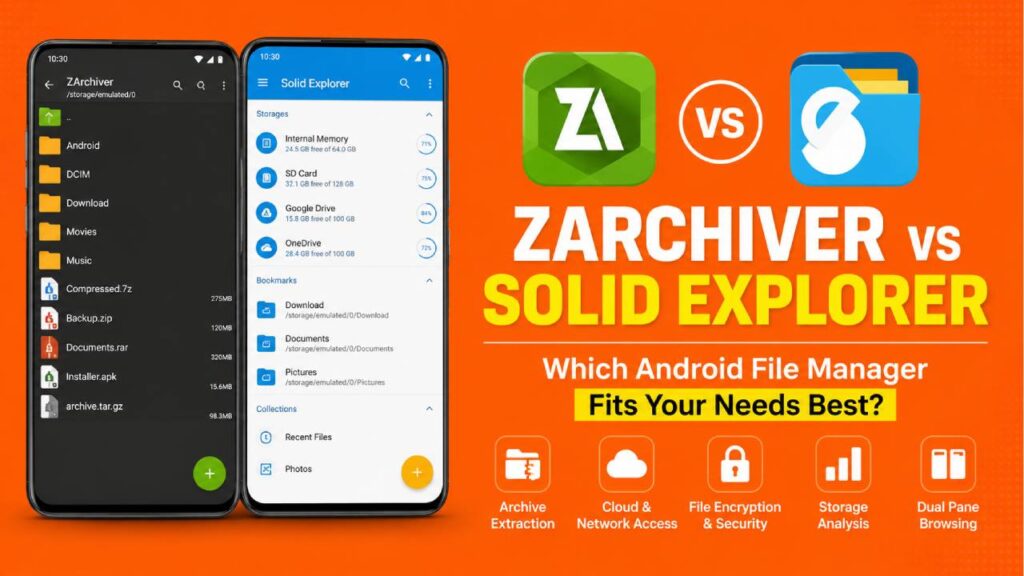
Core Feature Architecture Comparison
The table below shows the main differences between the free ZArchiver and the premium Solid Explorer.
| Feature Category | ZArchiver (v1.0.10) | Solid Explorer (v2.8+) |
|---|---|---|
| Primary Focus | Archive compression and extraction | Daily file management with cloud and network support |
| User Interface | Simple and lightweight folder list with E-Ink support | Modern Material Design 3 with dual-pane layout |
| Compression Support | 7Z, ZIP, BZIP2, GZIP, XZ, LZ4, TAR, ZSTD | ZIP and basic 7ZIP support |
| Decompression Formats | More than 35 formats including RAR5, ISO, DEB, RPM, DMG, and many others | ZIP, 7ZIP, RAR, TAR, GZ, and BZ2 |
| Network and Cloud Support | None. Works completely offline and does not require Internet permission | Google Drive, OneDrive, SMBv3, FTP, SFTP, and WebDAV |
| Encryption | Password-protected ZIP and 7Z archives | AES-256 encrypted folders with fingerprint and biometric protection |
| Pricing | Free with an optional Donate Pro version | Free trial followed by a paid license |
Performance Comparison: Compression vs Daily File Management
Why ZArchiver Is Better for Archive Extraction
ZArchiver is made mainly for working with compressed files. It performs very well when opening, creating, and extracting archives. Many normal file managers have problems with split archive files such as .7z.001, .zip.001, or .part1.rar. ZArchiver reads these archive parts correctly and combines them during extraction.
Another important advantage is multi-threading. Modern Android phones have multiple CPU cores. ZArchiver uses these cores to process archive data faster. As a result, large files like Linux system images, emulator ROM collections, or large backup packages usually finish extracting in less time.
The app also works completely offline. It does not request the Android Internet permission. Because of this, it cannot send folder information or usage data over the internet. That makes it a good choice for people who want to work with private or sensitive files without network access.
Why Solid Explorer Is Better for Daily File Management
Solid Explorer is designed to replace the default file manager on Android. One of its biggest features is the dual-pane layout. When the phone is in landscape mode, two folders appear side by side. This makes copying or moving files much faster because both locations stay open at the same time.
For example, a photo can be dragged from the DCIM or Camera folder directly into a folder on a NAS using SMBv3 or uploaded to a secure SFTP server without opening another app.
Solid Explorer also combines different storage services into one interface. Google Drive, OneDrive, local storage, SD cards, USB drives, FTP servers, and network shares all appear in one place. This saves time because there is no need to switch between different applications.
Another useful feature is the built-in storage analyzer. It scans the device and shows which folders use the most storage. Large cache folders, duplicate files, and forgotten downloads become much easier to find and remove.
Managing Android Storage Restrictions
Android 11, Android 12, Android 13, and Android 14 introduced Scoped Storage. Because of these changes, folders such as Android/data and Android/obb became harder to access. Both apps handle these restrictions differently.
ZArchiver’s Method
ZArchiver mainly uses the Android Storage Access Framework (SAF). It also supports Shizuku integration. With Shizuku, the app can run elevated shell commands without requiring full root access.
This makes it possible to copy, edit, or replace files inside Android/data and Android/obb when permission is available. Many users rely on this feature while managing game files or changing application data.
Solid Explorer’s Method
Solid Explorer also uses the Storage Access Framework to request permission from Android. On rooted devices using Magisk or KernelSU, the app becomes a complete root file manager.
Users can browse system folders, change Unix file permissions with chmod, edit files such as build.prop, and manage protected system directories directly.
Troubleshooting Common Problems
Even the best file management apps can show errors when working with large files or network storage. Below are two common issues and their solutions.
1. ZArchiver “Operation Completed with Errors” (7Z or RAR)
This error often appears while extracting split archives or archives that contain unusual Unicode filenames.
Possible Cause
- One or more archive parts are missing.
- The device runs out of memory during multi-threaded extraction.
Solution
Open Settings > General and make sure UTF-8 and UTF-16 filename support is enabled.
If large archives continue to fail, go to Settings > Compression and lower the number of extraction threads. Matching the thread count with the device’s efficiency CPU cores often improves stability.
2. Solid Explorer “Network Connection Timed Out” (SMBv3 or NAS)
This problem usually appears while connecting to a Windows shared folder or a network storage device.
Possible Cause
- SMBv1 fallback is blocked.
- Windows login information does not match.
Solution
During network setup, manually choose SMBv3 instead of automatic detection.
Also check that both devices are connected to the same local network. If Windows account protection is enabled, enter the username in the format:
COMPUTERNAME\Username
instead of using the Microsoft account email address.
Which File Manager Should Be Chosen?
The better app depends on how it will be used.
Choose ZArchiver if:
- Archive extraction and compression are the main tasks.
- Password-protected ZIP or 7Z files are used regularly.
- Split archives such as RAR or 7Z need to be extracted.
- Large game files must be placed inside Android OBB folders.
- Complete offline operation and maximum privacy are important.
Choose Solid Explorer if:
- A full-time Android file manager is needed.
- Files are moved regularly between internal storage, SD cards, USB drives, cloud storage, and network servers.
- SMB, FTP, SFTP, or WebDAV connections are used often.
- A modern interface with dual-pane browsing improves productivity.
- Features such as storage analysis, media playback, biometric folder protection, and root file management are important.
Final Thoughts
ZArchiver and Solid Explorer are both excellent Android file management tools, but they are designed for different purposes.
ZArchiver focuses on archive handling. It supports many archive formats, works completely offline, and performs very well with split archives and large compressed files. It is an excellent choice for users who regularly manage backups, game data, ROM files, and password-protected archives. ZArchiver Free Download is available on the official site and on Google Play.
Solid Explorer focuses on complete file management. It offers cloud integration, network access, dual-pane browsing, storage analysis, and advanced root features inside one polished interface. It works well as a daily file manager for users who need much more than archive extraction. Solid Explorer is available on the official site and on Google Play.
The final choice depends on the workflow. If archive management is the priority, ZArchiver is the stronger option. If complete file management across local storage, cloud services, and network devices is the goal, Solid Explorer is the better fit.