The demand for mobile gaming on desktop computers keeps growing every year. Many players want better performance, smoother gameplay, and more control than a mobile device can provide. Because of this, Android emulators have become a popular choice for gamers.
For Windows users, LDPlayer is one of the most popular Android emulators. It uses fewer system resources than many other emulators, supports macros, and delivers high frame rates in many Android games.
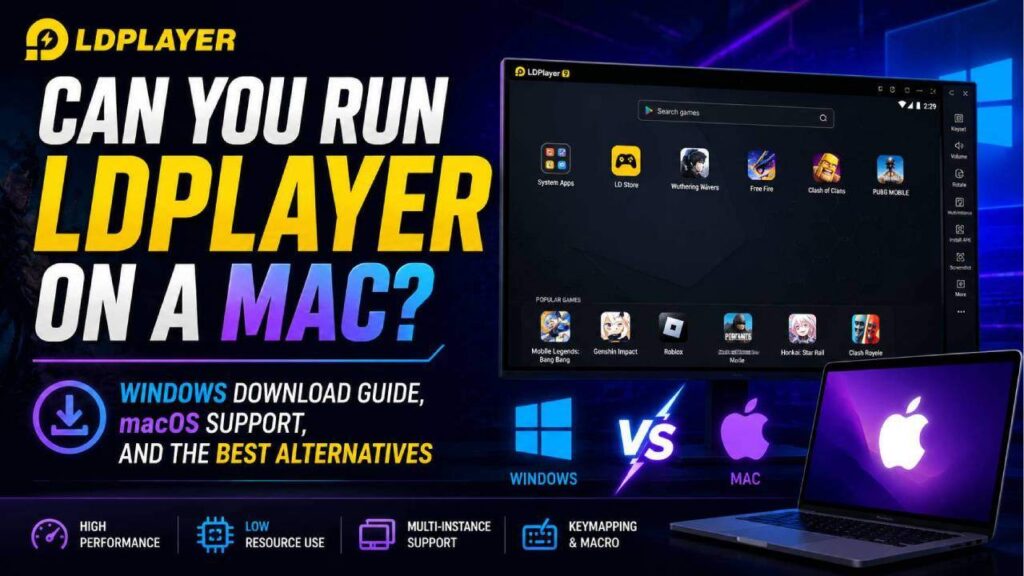
Many Mac users also want to play Android games on their MacBook or iMac. Many people search for LDPlayer Download for Windows and Mac when looking for an installer. However, finding a Mac version of LDPlayer can be confusing because there is no native macOS version.
This guide explains the current availability of LDPlayer, shows how to install it on Windows, and covers the best alternatives for people using macOS.
Is LDPlayer Available on Mac?
The simple answer is no.
LDPlayer does not have a native version for macOS. There is no official desktop installer that runs directly on Mac computers.
The emulator, including LDPlayer 9 and newer builds based on Android 14, is designed only for Intel and AMD x86 or x86_64 processors running Microsoft Windows.
LDPlayer Platform Availability
| Platform | Support Status |
|---|---|
| Windows 7 / 10 / 11 | Native Support (x86) |
| macOS (Intel Macs) | No Native App Available |
| macOS (Apple Silicon Macs) | No Native App Available |
The main reason is the technology used inside the emulator.
LDPlayer depends on its own virtualization system. It also uses Windows-based technologies such as DirectX and custom VirtualBox optimizations that work with the Windows kernel.
Moving this engine to macOS is not a simple task. Apple has also changed from Intel processors to Apple Silicon chips like the M1, M2, M3, and M4. These processors use ARM architecture instead of x86.
Because of this hardware change, the emulator would need a completely new hypervisor and a large amount of development work before it could run natively on macOS.
Do Not Confuse It with the App Store Version
Some users find an app called “LDPlayer: Cloud Phone” in the iOS or macOS App Store.
This is not the desktop Android emulator.
Instead, it is a companion application for LDPlayer’s cloud phone service. The Android system runs on remote servers, and the device streams to the computer over the internet. It does not use the Mac’s hardware to run Android apps locally.
Windows Download and Setup Guide
Anyone using a Windows computer, or a Windows virtual machine, can install LDPlayer without much difficulty.
Before starting the installation, it is a good idea to check whether the computer meets the recommended hardware requirements.
Minimum and Recommended System Requirements
| Resource | Minimum Requirement | Recommended Configuration |
|---|---|---|
| Operating System | Windows 7 / 8 / 10 (32-bit or 64-bit) | Windows 10 / 11 (64-bit with latest updates) |
| Processor | Intel or AMD x86/x86_64 | Intel Core i5-10400 or AMD Ryzen 5 3600 |
| Memory | 4 GB RAM | 8 GB to 16 GB RAM |
| Storage | 36 GB Free Space | 100 GB SSD Storage |
| Graphics | DirectX 11 / OpenGL 2.0 Driver | NVIDIA GeForce GTX 1060, GTX 1650, or better |
Meeting the minimum requirements allows LDPlayer to run. However, using the recommended hardware usually provides much smoother gaming performance, especially in demanding Android games.
Step-by-Step Windows Installation
Step 1: Download the Installer
Estimated Time: About 2 Minutes
Go to the official LDPlayer website and download the version that matches the games you want to play.
For most users, LDPlayer 9 is the best choice because it uses an optimized Android Pie platform that works well with many modern games.
Avoid downloading LDPlayer from third-party websites. Some unofficial download pages may include unwanted software or modified installation files.
Step 2: Enable Hardware Virtualization
Required Before Installation
Restart the computer and enter the BIOS or UEFI settings.
Most systems open the BIOS by pressing F2, F12, or Delete while the computer starts.
Find one of these options:
- Intel Virtualization Technology (VT-x)
- AMD-V
- SVM Mode
Change the setting to Enabled, save the changes, and restart Windows.
Hardware virtualization is one of the most important settings for Android emulators.
If it stays disabled, LDPlayer may fail to start, run very slowly, or show heavy frame drops during gameplay.
Step 3: Run the Installation Wizard
Estimated Time: About 3 Minutes
Locate the downloaded installer.
Right-click the file and choose Run as administrator.
The setup window will appear.
Select Custom Installation if another installation location is preferred. This is useful when the C: drive has limited space or when another SSD offers better performance.
After selecting the installation folder, click Install Now.
The installer will copy the required files and prepare the emulator.
Step 4: Launch LDPlayer
First Startup
Open LDPlayer after the installation finishes.
The first launch usually takes a little longer because the emulator creates its internal files and checks the computer’s graphics hardware.
When the setup finishes, sign in with a Google Play account.
Apps and games can also be installed through the built-in LD Store.
Best Android Emulator Alternatives for Mac
Since LDPlayer cannot run natively on macOS, Mac users need another solution.
The best option depends on whether the Mac uses an Intel processor or Apple Silicon.
1. BlueStacks App Player
Best Overall Alternative
BlueStacks is one of the closest competitors to LDPlayer.
It supports many Android games and offers a familiar experience for desktop users.
Intel Macs
BlueStacks 4 and BlueStacks 5 include installers made for Intel-based Mac computers.
These versions run directly on compatible Intel hardware.
Apple Silicon Macs
Apple Silicon Macs use BlueStacks X or BlueStacks Air.
Instead of running Android locally, these services stream supported Android games from the cloud.
This reduces the need for heavy x86 translation while keeping input delay low during gameplay.
2. Android Studio Emulator
Best Local Performance on Apple Silicon
Android Studio is Google’s official Android development platform.
Although developers mainly use it for testing applications, it also includes a powerful Android emulator.
Inside Android Studio, users can open Device Manager and create an Android Virtual Device (AVD).
Downloading an ARM64 system image allows the virtual device to match the architecture used by Apple Silicon processors.
Because the system uses ARM instead of x86 translation, performance is usually much smoother. CPU usage stays lower, temperatures remain cooler, and many Android applications run very well.
The interface is designed for development instead of gaming, but it still provides reliable local Android virtualization.
3. PlayCover
Best for Native Apple Silicon Gaming
PlayCover is an open-source project built specifically for Apple Silicon Macs.
Unlike Android emulators, PlayCover does not create a full Android operating system.
Instead, it runs iOS application packages, also called IPA files, directly on macOS.
Many popular mobile games are available on both Android and iOS.
Running the iOS version through PlayCover gives users native Apple Silicon performance without the extra processing required by Android emulation.
PlayCover also supports custom keyboard and mouse controls, full-screen gaming, and high-resolution displays.
Troubleshooting Common Emulator Problems
Whether using LDPlayer on Windows or another emulator on macOS, most performance issues usually come from similar system settings.
The following checks can solve many common problems.
Emulator Stops at 94%
If the loading screen freezes around 94%, hardware virtualization may not be enabled.
Another common reason is a firewall conflict.
Check the BIOS or UEFI settings again and make sure VT-x, AMD-V, or SVM Mode is enabled.
It also helps to add the emulator folder to Windows Defender or the Mac security software as an allowed application.
Black Screen or Graphics Problems
Graphics problems usually happen because the emulator uses the integrated GPU instead of the dedicated graphics card.
On Windows, open Graphics Settings, add dnplayer.exe, and change it to High Performance.
On Mac alternatives, switch between OpenGL, DirectX, or Metal rendering modes inside the emulator settings to see which option works better.
Lag During Multi-Instance Gaming
Running several emulator windows at the same time uses more CPU threads and RAM.
Giving every instance too many resources can actually reduce overall performance.
A common setup is:
- 2 CPU cores for each instance
- 2048 MB RAM for each instance
This leaves enough system resources for the operating system to continue running smoothly while multiple emulator windows stay responsive.
Final Thoughts
LDPlayer remains one of the strongest Android emulators available for Windows users. It offers excellent gaming performance, efficient resource usage, and useful features such as macro support and multi-instance management.
However, there is currently no native version of LDPlayer for macOS, whether the computer uses an Intel processor or Apple Silicon.
Mac users should choose another solution based on their hardware. BlueStacks provides an experience that is similar to LDPlayer, Android Studio offers excellent local virtualization for Apple Silicon, and PlayCover delivers native performance for supported iOS games.
Choosing the right option depends on the computer being used and the type of mobile games or applications that need to run.