
Managing an iPhone from a Windows PC has never been completely easy. Apple has slowly moved away from the old iTunes system by releasing separate apps such as Apple Devices and Apple Music for Windows. Even so, many users still feel limited when using Apple’s official tools.
Apple’s software mainly focuses on syncing data in a controlled way instead of giving users full access to their files. For example, it is difficult to move individual music files, save specific iMessage conversations as PDF files, or back up only selected app data. In many cases, users must back up or sync the entire device. Because of these limits, many people choose third-party iPhone management software.
However, using third-party software also brings risks. Some programs may collect personal information, cause software issues, or create security problems. Therefore, choosing software that works safely with Apple’s official drivers is very important.
What Makes Third-Party iPhone Management Software Safe?
Before connecting any third-party program to an iPhone through USB or Wi-Fi, it helps to understand how the connection works.
Safe iPhone management software does not break into the phone or bypass Apple’s security system. Instead, it works through Apple’s official Apple Mobile Device Support drivers and the Lockdown service built into iOS. When users tap Trust This Computer on the iPhone and enter the device passcode, a secure pairing process takes place. This process creates cryptographic keys that are stored on the Windows PC in the following location:
C:\ProgramData\Apple\Lockdown
The communication process looks like this:
[iPhone / iOS] <— (Lockdown Protocol / Pair Records) —> [Windows Drivers] <— [Third-Party Software Interface]
A safe program simply uses this secure connection to communicate with the device. An unsafe program may install unknown drivers, change important iOS settings without permission, or send device information to external servers without clear user consent.
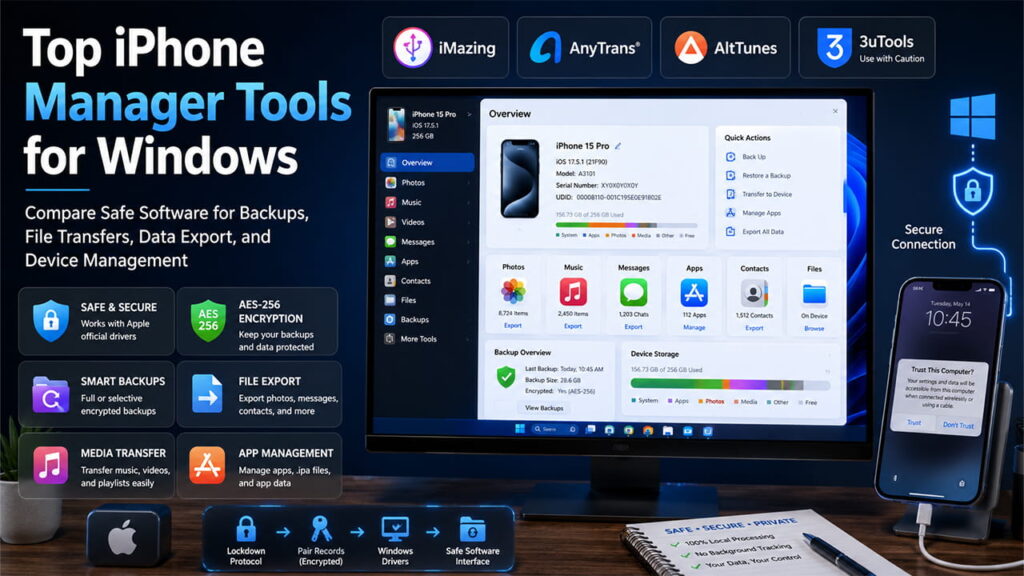
Top 3 Safe and Effective iPhone Managers for Windows
| Software | Best For | License Model | Privacy Level |
|---|---|---|---|
| iMazing | Advanced backups, data extraction, app management | Paid | Excellent |
| AltTunes | Simple media transfers and file exports | Paid | Excellent |
| AnyTrans | Device migration and media management | Free Trial / Paid | Good |
1. iMazing: Best Choice for Advanced Control
For users who want detailed control over their iPhone without compromising security, iMazing is one of the strongest options available.
Advanced Backup Access
Unlike iTunes backups, which are stored in folders filled with difficult-to-read file names, iMazing lets users browse backup data through a clear and organized interface. Individual items such as WhatsApp databases, call logs, messages, and voicemails can be viewed and exported separately.
App Management (.ipa Files)
iMazing can save application installation files (.ipa files) to a Windows computer. This feature helps users keep copies of purchased apps and restore older versions when needed.
Security Features
The software supports AES-256 encrypted backups and includes a spyware detection tool based on Amnesty International’s Mobile Verification Toolkit (MVT). This helps users identify advanced security threats that may exist on a device.
2. AltTunes: Best for Fast and Simple File Transfers
AltTunes focuses on making file transfers between Windows and iPhone simple and easy.
Two-Way Media Transfers
Users can move MP3, M4A, MP4, and other media files directly between a PC and an iPhone. Unlike traditional syncing methods, AltTunes allows individual file transfers without replacing existing media libraries.
HEIC to JPG Conversion
Modern iPhones often save photos in HEIC format. Many Windows systems cannot display these files without additional software. AltTunes automatically converts HEIC images to JPG format during export, making them easier to use on Windows.
Stable Driver Integration
AltTunes uses Apple’s official drivers for communication. Because of this, iOS updates are less likely to cause connection issues or file transfer problems.
3. AnyTrans: Best for Device Migration
AnyTrans is designed for users who regularly move data between devices or manage large amounts of content.
Phone Switching Tools
The Phone Switcher feature helps transfer data between Android and iPhone devices. It handles the conversion process needed to place Android files into the correct iOS locations.
Organized Data Categories
AnyTrans separates information into categories such as Photos, Messages, Audio, Safari Data, Contacts, and more. This structure makes it easier to find, export, and manage specific types of data.
Users can also export complete iMessage conversations as PDF or HTML files for backup or record-keeping purposes.
The 3uTools Question: Is It Safe?
Anyone searching for iPhone management software will quickly come across 3uTools for Windows. It is free and offers many powerful features. These include hardware checks, battery health analysis, firmware flashing, and jailbreaking tools.
+————————————————————————+
| IMPORTANT SAFETY NOTICE |
| |
| 3uTools is not generally detected as malware by Windows Defender. |
| However, privacy and security concerns continue to be discussed by |
| many technical users and cybersecurity professionals. |
+————————————————————————+
Why Some Users Avoid 3uTools
Technical analysis of 3uTools network activity has shown regular communication with remote servers. During operation, the software can access important device information, including:
- UDID (Unique Device Identifier)
- IMEI
- Device serial numbers
- Logic board information
Some of this information is required for tasks such as firmware downloads and device verification. However, concerns exist because certain hardware identifiers may also be transmitted outside the local computer environment.
If device identifiers are stored externally and later exposed through a security incident, they could create long-term privacy concerns.
Final Recommendation
For devices that contain personal information, work profiles, banking applications, or sensitive data, more privacy-focused solutions such as iMazing, AltTunes, or AnyTrans are generally safer choices.
For older devices used only for testing, restoration, or hobby projects, 3uTools may still be useful. In such cases, many advanced users prefer running it on a separate computer with internet access disabled whenever possible.
How to Securely Export iPhone Data to Windows
The following process uses iMazing as an example to create a secure local backup and export data without cloud involvement.
Requirements
Apple Mobile Device drivers must already be installed on Windows. These drivers are usually installed automatically when the Apple Devices app is installed.
Step 1: Create a Secure Connection
Connect the iPhone to the Windows computer using a genuine Lightning or USB-C cable.
Unlock the iPhone, tap Trust, and enter the device passcode when prompted.
Step 2: Open iMazing
Launch iMazing. The software will detect the secure pairing record already stored on the computer and display the connected device.
Step 3: Start Backup Configuration
Select the device from the left panel and choose Back Up.
Step 4: Enable Encryption
Turn on Backup Encryption and create a strong password.
This step protects backup files using AES-256 encryption. Even if someone gains access to the backup folder, the data remains protected without the password.
Step 5: Export Data
After the backup is complete, open categories such as Photos, Messages, Contacts, or Files.
Choose a destination folder on the Windows computer and click Export.
All exported data remains stored locally on the computer unless users manually upload it elsewhere.
Common Windows and iPhone Connection Problems
Error: Device Not Detected
Sometimes the software cannot communicate with Apple’s driver services.
Solution
- Close the iPhone management software.
- Press Win + R.
- Type services.msc.
- Press Enter.
- Find Apple Mobile Device Service.
- Right-click the service.
- Select Restart.
- Reopen the software.
This often restores communication between Windows and the iPhone.
Error: Backup Failed Due to Low Disk Space
Many Windows computers use a small system drive (C:) and a larger storage drive (D:). Some applications save temporary backup files on the system drive by default.
Solution
- Open the software settings.
- Locate the backup storage location.
- Change it to another drive with enough free space.
- Use an NTFS or exFAT formatted drive.
Older FAT32 drives cannot store files larger than 4 GB, which may cause backup failures when handling large iPhone databases.